Want to impress clients and catch website issues fast? A 5-minute site audit can help you spot critical problems - like slow load times, broken links, or mobile issues - before stepping into your next meeting. It’s not a deep dive but a quick check to address high-priority concerns that impact user experience and SEO.
Key Steps:
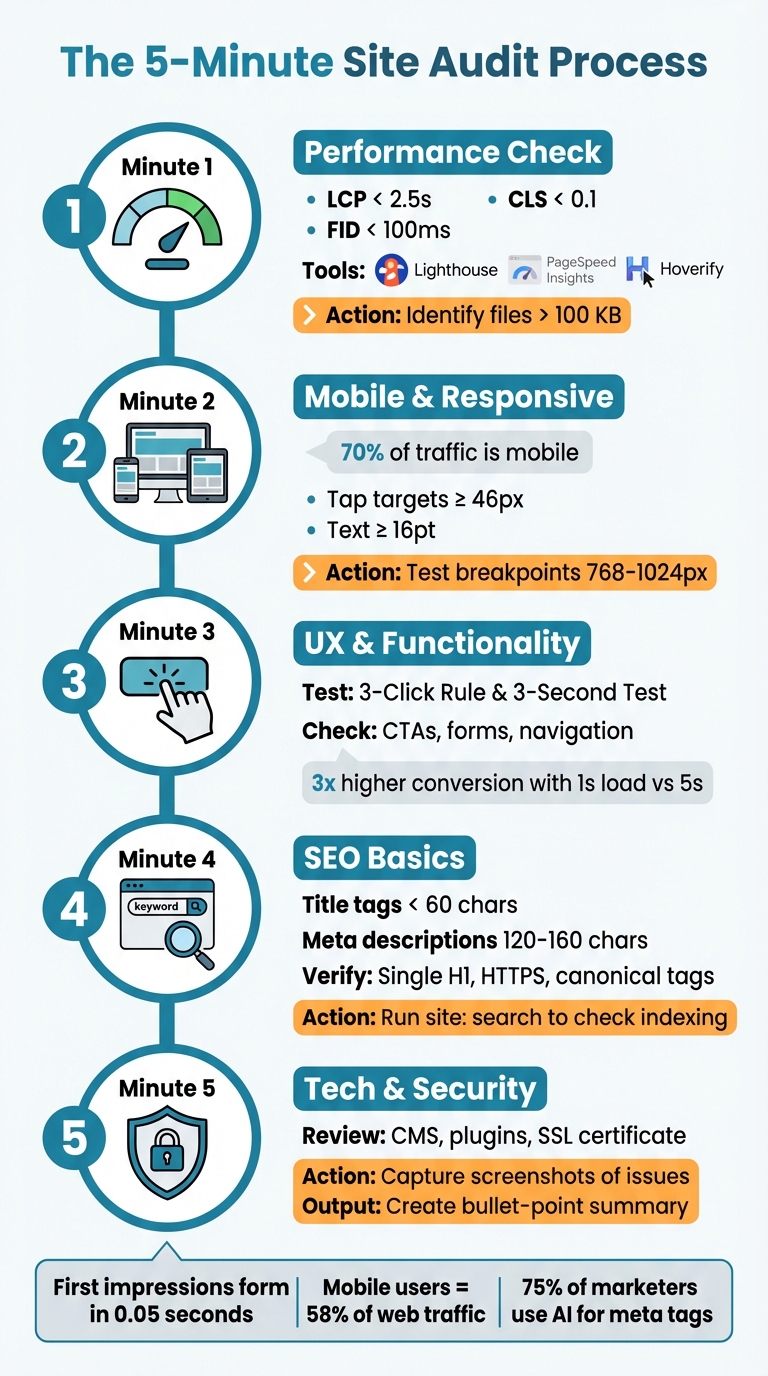
- Performance Check: Use tools like Lighthouse or PageSpeed Insights to measure load times and flag oversized files.
- Mobile Test: Ensure the site works smoothly across devices using responsive viewers.
- UX & Functionality: Test navigation, CTAs, and forms for smooth user paths.
- SEO Basics: Review meta tags, headings, and indexing issues.
- Tech & Security: Verify SSL, hosting, and plugins, and capture screenshots of problems.
Why it matters? First impressions count - visitors form opinions in 0.05 seconds. A quick audit ensures you’re prepared with actionable insights, boosting your credibility and helping clients trust your expertise.
Preparation: Setting Up for a Fast and Effective Audit
Gather Your Tools
Before diving into your 5-minute audit, make sure you’re fully equipped. First, confirm that Hoverify is installed and ready to go. This all-in-one browser extension is a powerhouse, combining tools for performance testing, responsive previews, SEO analysis, and even screenshot capture - all without overloading your toolbar. Next, ensure you have the correct URL (whether it’s a staging or production site) and a stable internet connection. Having everything in place upfront will save you precious time and keep the process smooth. Once your tools are ready, you can focus on identifying any variables that might affect performance.
Start with a Clean Browser Session
Always begin your audit in an incognito or private browsing window. Why? Cached assets can hide current technical issues, show outdated content, or skew performance results. A clean session ensures you’re seeing the site as a first-time visitor would, which is critical for accurate testing. Remember, Google has emphasized the importance of page speed as a ranking factor for desktop since 2010, and for mobile searches since the 2018 “Speed Update”. If incognito mode isn’t an option, clear your browser cache and cookies to reload all assets from scratch. This step ensures you’re starting with a fresh slate and accurate metrics before diving into a visual evaluation.
Run a Quick Visual Check
Load the homepage and take a moment to observe how it renders in real time. Watch for layout shifts, blocking alerts, or console errors during the initial load. Ideally, the Largest Contentful Paint (LCP) should happen within 2.5 seconds, and the Cumulative Layout Shift (CLS) should stay under 0.1. Use Hoverify’s inspector overlay to check key elements like the header, hero section, and main navigation. Are the headline and value proposition clear within three seconds of landing? Keep an eye out for broken images, overlapping text on mobile, or the absence of an SSL padlock. Jot down any issues you notice so you’re ready for the more detailed, step-by-step evaluation that follows. This groundwork sets the stage for a fast and focused audit.
Step 1: Check Performance (Minute 1)
Run a Quick Performance Test
Start by opening Chrome DevTools and running a Lighthouse audit directly in your browser. In just about 30 seconds, you’ll get scores for performance, accessibility, and SEO. Then, open PageSpeed Insights in another tab to cross-check those scores. These tools will highlight critical issues like render-blocking scripts or oversized images. For a more visual approach, use Hoverify’s Debug and Optimize Images features to identify large files without leaving the page. This tool shows which images are slowing things down and even provides one-click optimization tips. Combining these tools gives you both the numbers and a clear visual context - perfect for explaining issues to clients. Once you’ve reviewed the data, compare it to core web vital benchmarks to figure out which fixes to tackle first.
Review Key Performance Metrics
Pay close attention to Core Web Vitals: aim for LCP under 2.5 seconds, FID below 100 milliseconds, and CLS under 0.1. If PageSpeed Insights flags any red zones, those are your top-priority problems. Since Google’s ranking factors weigh heavily on these metrics, poor scores can hurt your search visibility. Make a note of any metrics that fall short - these will be the key points to address when discussing improvements with your client.
Find Heavy Files
Switch over to Hoverify’s Assets panel and sort files by size to spot the biggest offenders. Images larger than 100 KB are often performance roadblocks that can lead to higher bounce rates. The largest file is usually the LCP element, so that’s where you should focus your optimization efforts. Consider compressing these images, converting them to WebP, or enabling lazy loading for content below the fold. If you notice multiple large JavaScript files, flag them for further investigation. This quick scan will give you a prioritized list of fixes that can significantly improve load times.
Step 2: Test Mobile and Responsive Design (Minute 2)
Preview Multiple Devices at Once
Fire up Hoverify’s Responsive Viewer to see how your site looks across multiple device profiles simultaneously. Start with key devices popular in the U.S., such as the iPhone 14 Pro, Samsung Galaxy S23, and iPad Air, since over 70% of web traffic now comes from mobile users. The great thing? When you interact with one device, all the other viewports update in real-time, making it easy to spot inconsistencies. Pay close attention to navigation menus, ensuring they expand smoothly, CTAs stay visible and clickable, and critical content like forms or product details display properly without forcing users to scroll horizontally. This parallel testing saves time while offering a clear picture of how users experience your site on their devices. Once you’ve done this, it’s time to dig deeper into mobile usability.
Check Mobile Usability
Now, focus on the smaller details that can make or break the user experience on mobile. For instance, all buttons and tap targets should be at least 46 pixels to avoid frustrating accidental taps. Text readability matters too - ensure body text is at least 16pt (though 18pt is even better) with a line spacing of 1.5 or more. Look out for overlapping elements, pop-ups without a clear close button, and forms that are tough to fill out on smaller screens. Why does this matter so much? Mobile users account for about 58% of all web traffic, but their behavior - and conversion rates - often differ from desktop users. These seemingly minor tweaks can have a big impact on your bottom line.
Identify Problem Breakpoints
As you test across various viewport sizes, keep an eye out for the breakpoint that creates the most layout headaches. This is often in the range of 768px to 1024px, where tablet and desktop designs tend to clash. Use Hoverify’s capture tool to document the most problematic viewport by snapping a screenshot. Highlight specific issues, such as a hero image that gets awkwardly cropped, a navigation menu that overlaps with content, or text that becomes unreadable. These documented problems will be key talking points during your client review sessions.
Step 3: Review UX and Core Functionality (Minute 3)
After tackling technical performance and mobile responsiveness, it’s time to focus on the user experience (UX) and the core functionality of your site.
Test Navigation and Conversion Paths
Start by applying The 3-Click Rule: ensure users can locate the main product, view pricing, and access a contact or purchase page within three clicks. Then, perform The 3-Second Test - can someone unfamiliar with the site understand the value proposition in just three seconds? If not, flag this as a priority issue. Make sure menu labels are short, intuitive, and tailored to your audience. As you navigate through key conversion paths, look for “Where Am I?” indicators like breadcrumbs or clear headers, especially during multi-step processes such as checkout or form submissions. Keep in mind that B2B websites loading in 1 second see conversion rates three times higher than those taking 5 seconds - so speed and clarity go hand in hand.
Once navigation clarity is assessed, shift your attention to the site’s core functional elements.
Inspect Key Components
Use tools like Hoverify’s Inspector to examine navigation menus, CTAs (calls-to-action), and forms in real-time. Check that CTA buttons have a high-contrast color - ideally a 3:1 contrast ratio against the background - to ensure they stand out. Verify that primary CTAs are strategically placed above the fold, mid-page, and at the bottom of critical pages like those in the conversion funnel. If button placement or design feels off, experiment with different sizes and colors using a visual editor. For forms, confirm that all fields are clearly labeled, validation works properly, and success messages are visible.
Next, confirm that all links and interactive features are functioning as intended.
Check for Broken Links or Errors
Click through internal links and buttons, paying extra attention to those leading to contact forms, signup pages, and checkout processes - these are essential for driving business results. Submit a test form to ensure success messages appear and data is transmitted correctly. Neil Patel highlights the importance of social proof in boosting conversion rates:
“Social proof can have a massive impact on conversion rates because people are more likely to follow the crowd than make decisions based on their own research”.
If your testimonials link to case studies or external reviews, double-check that those links are functional. On mobile, ensure buttons are easy to tap and interactive elements remain stable. If you encounter any 404 errors or misdirects, take a quick screenshot using Hoverify and note it for your meeting.
Step 4: Review SEO Basics (Minute 4)
Once you’ve confirmed the site’s functionality, it’s time to make sure it’s ready to perform well on search engines. A quick SEO check can help you spot easy opportunities for improvement and identify potential issues that might be limiting your rankings.
Review Key SEO Elements
Use Hoverify’s SEO panel to examine the page’s meta tags, headers, and HTML structure. Start by checking that every page has a unique title tag under 60 characters. This is prime SEO territory. As Yellow Tuxedo explains:
“Google needs to understand, in a single sentence, what you do and who you serve. It’s the most powerful 70 characters on your entire website.”
Next, review the meta descriptions. These should be present, engaging, and between 120–160 characters to encourage higher click-through rates. Confirm that each page includes a single H1 tag that matches the title and is supported by a logical H2/H3 hierarchy. While approximately 75% of marketers now use AI to speed up meta-tag creation, a human touch is still crucial for ensuring context and accuracy.
Detect SEO Blockers
Look for anything that might prevent Google from indexing your site. For example, check the meta robots tag for any accidental “noindex” directives left over from staging environments. Verify that the site uses HTTPS with a valid SSL certificate and that a canonical tag is in place to prevent duplicate content issues. As Suhani Purohit, Senior SEO Specialist at The Influence Agency, points out:
“Even the best content can struggle to rank if your technical foundation is weak, which is why a website SEO audit is an essential step in any SEO strategy.”
You can also use a “site:” search on Google (e.g., site:yourdomain.com) to see which pages are indexed. This can help you spot staging URLs or broken links that shouldn’t be live.
Scan for Broken or Redirected Links
After addressing the structural SEO elements, check the site’s links. Use Hoverify’s SEO panel to identify any internal or external links leading to 404 errors or redirect chains. Make sure all URL variations redirect to a single preferred version. Fixing broken links or redirect issues is an easy way to improve both user experience and search engine visibility. For larger websites, tools like Google Search Console can automate regular scans and help you catch problems before they escalate.
Step 5: Check Tech Stack, Security, and Capture Screenshots (Minute 5)
In your final minute, focus on gathering technical details and visual evidence to back up your recommendations.
Review the Site’s Tech Stack
Use Hoverify’s Site Stack panel to dig into the website’s technical setup. This will show you details like hosting, CMS, frameworks, plugins, and SSL status. Check if the platform is something like WordPress or a custom build, and verify the SSL certificate’s issuer and expiration date to avoid any surprises later. Look for outdated software versions or plugins that could pose security risks. If the site is custom-built, double-check your findings, as proprietary frameworks might not always show up in automated tools.
Capture Screenshots of Major Issues
To make your points clear, take annotated screenshots of any major problems. Use Hoverify’s Capture tools - Select Element mode is great for zooming in on specific issues, while Full Page mode provides a broader view. Highlight layout problems, alignment issues, or visual inconsistencies with arrows or markers. Save these images with clear, descriptive filenames to make them easy to reference during your meeting.
Prepare a Meeting Summary
Create a quick, bullet-point summary of the key issues you’ve identified. For example:
- Homepage loads in 4.2 seconds (target: under 3 seconds)
- Mobile menu breaks at 768px
- Missing H1 tag on the About page
- SSL certificate expires in 14 days
This summary will help you guide your client through the main findings and prioritize fixes. Keep your annotated screenshots neatly organized in a folder or cloud drive for easy access during the meeting.
Conclusion: Key Takeaways from the 5-Minute Site Audit
This quick and efficient workflow equips you with objective data to bring to client meetings, instantly boosting your credibility. Each step of the process is designed to uncover actionable insights in just five minutes.
What makes this audit so effective is its ability to pinpoint problems and turn them into strategic opportunities. By focusing on the 20% of issues that have the biggest impact, it addresses the factors that truly matter to your client’s success. For instance, slow load times can hurt conversions, mobile usability issues could cost access to as much as 58% of web traffic, and missing SEO components might limit visibility on Google.
“Building trust and delivering value early helped us close a couple of deals over $20,000!” - Michael D. Wailes, Spectrum Interactive Group
With Hoverify, you can quickly consolidate performance checks, responsive testing, SEO reviews, and tech stack evaluations into a single tool. It allows you to complete the audit efficiently while providing clear documentation of actionable fixes. This approach not only streamlines client discussions but also helps justify project budgets with ease.
FAQs
What are the must-have tools for a quick 5-minute site audit?
If you’re looking to perform a quick and efficient 5-minute site audit, having the right tools at your disposal is key. Start with Google PageSpeed Insights, which evaluates your site’s performance and loading speed. Next, use Google Search Console to check the overall SEO health and uncover any potential issues that might need attention. Finally, turn to analytics platforms like Google Analytics to gain a deeper understanding of user behavior and site traffic patterns. With these tools in hand, you’ll be ready to tackle client concerns with confidence and professionalism.
How can I quickly check if my site is mobile-friendly before a client meeting?
To make sure your site works well on mobile devices, start by testing its responsiveness. You can do this by resizing your browser window or using a mobile emulator in your browser’s developer tools. Pay attention to responsive design - your layout should adjust smoothly to various screen sizes. Ensure text is easy to read without zooming, buttons are large enough to tap comfortably, and images load quickly without slowing things down. For a more thorough review, tools like Google’s Mobile-Friendly Test or performance insights can help pinpoint specific problems.
What issues are typically identified during a quick 5-minute site audit?
During a quick 5-minute site audit, some frequent issues tend to pop up. These include slow-loading pages, images that aren’t properly optimized, and broken links. You might also notice missing or duplicate meta tags, problems with mobile responsiveness, or even security gaps like the absence of an SSL certificate.
Addressing these basics ensures the website runs smoothly, offers a good user experience, and is prepared for any client conversations.