When it comes to taking full-page screenshots, GoFullPage and Hoverify are two top contenders, but they serve different purposes:
- GoFullPage is a simple, dedicated tool for full-page screenshots. It’s great for users who want a lightweight, no-frills solution. It offers a free version for basic needs and a premium plan ($12/year) for extra features like annotations, cropping, and PDF splitting.
- Hoverify is more than just a screenshot tool. It’s an all-in-one browser extension for developers, combining features like element inspection, responsive testing, and asset extraction. Its screenshot options are versatile, and it includes editing tools. However, it’s pricier at $30/year or $89 for lifetime access.
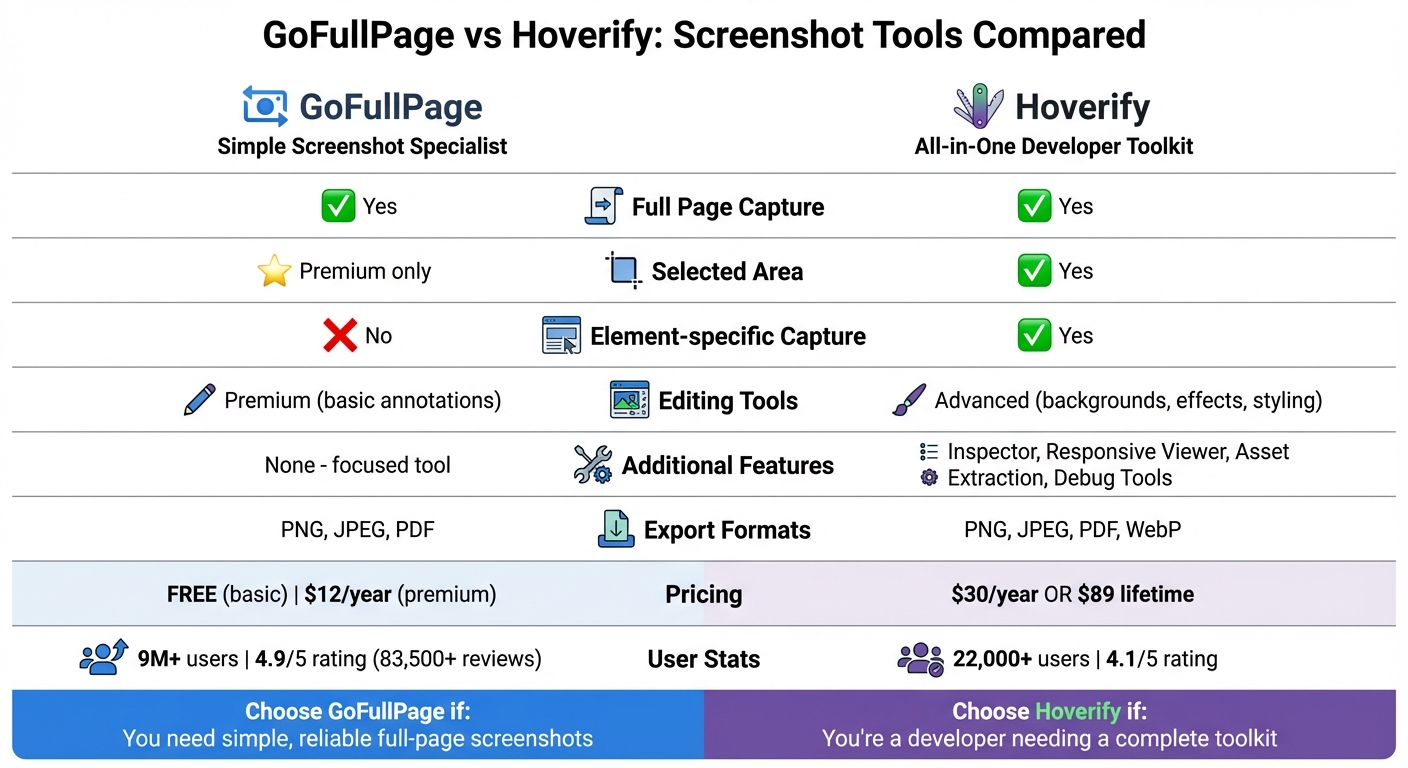
Quick Comparison
| Feature | GoFullPage | Hoverify |
|---|---|---|
| Full Page Capture | Yes | Yes |
| Selected Area | Premium only | Yes |
| Element-specific | No | Yes |
| Editing Tools | Premium (basic) | Advanced |
| Additional Features | None | Developer tools included |
| Pricing | $12/year (premium) | $30/year or $89 lifetime |
If you need a straightforward tool for full-page screenshots, GoFullPage is a better fit. For developers needing a broader toolkit, Hoverify offers more functionality.
GoFullPage: Overview and Features
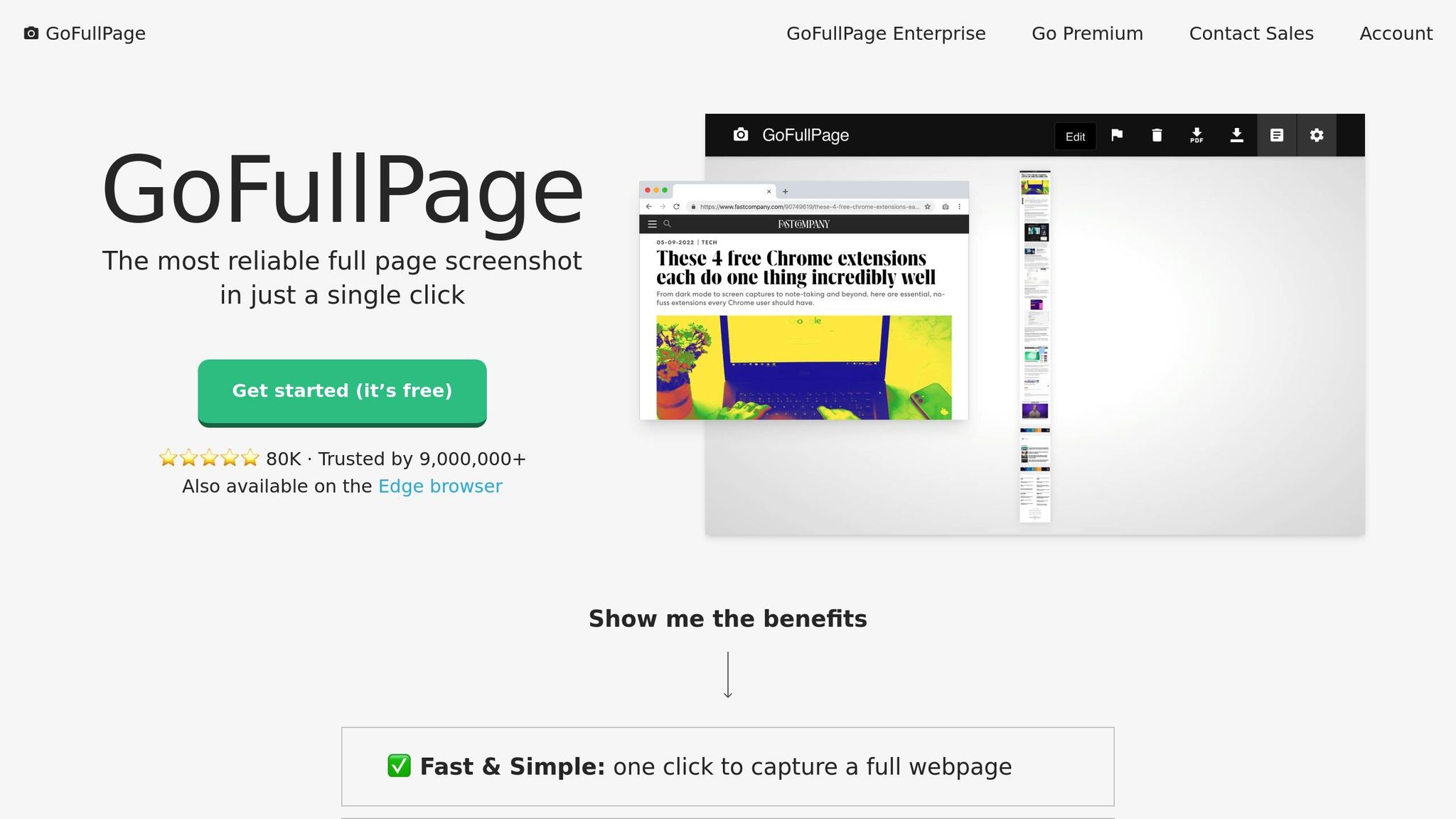
GoFullPage is a browser extension designed to capture entire webpages in a single image, eliminating the hassle of manually piecing screenshots together. It’s widely used by developers and designers who need dependable full-page captures for their projects.
The extension works by automatically scrolling through the page and stitching snapshots together seamlessly. You can activate it with just a click or by pressing Alt+Shift+P. Its privacy-focused design avoids unnecessary permissions, making it a secure option for sensitive or internal environments. Let’s dive into how GoFullPage delivers smooth and reliable full-page captures.
Key Features of GoFullPage
GoFullPage simplifies web documentation with its automated one-click functionality. It scrolls through the page, captures everything - including sticky headers, iframes, and scroll boxes - and combines it all into a single image. You can export your screenshots in various formats, such as PNG, JPG, or PDF, depending on your needs.
For those looking for more advanced features, the premium version is available for $12 per year. It includes tools for cropping images, adding annotations like text, shapes, and blur effects, applying watermarks with URLs and timestamps, and splitting long pages into smart PDF sections. The free version, while fully functional for basic captures, requires an external editor for cropping or annotations.
Another handy feature is the local history manager, accessible through the extension’s “Files” page. This allows you to view, download, or delete your screenshot history, with all files stored securely on your local device.
Limitations of GoFullPage
Despite its many strengths, GoFullPage does have some limitations. The extension generates static images, which means you can’t search, filter, or extract structured text from screenshots without using additional OCR software. Additionally, it lacks an automated monitoring feature, so you’ll need to recapture pages manually if they’re updated.
Performance can also be an issue with very large, animated, or highly dynamic pages, potentially causing browser slowdowns or incomplete captures. For extremely long webpages, the tool may split the screenshot into multiple files instead of creating one continuous image. Another drawback is that GoFullPage requires an active internet connection, as it doesn’t support offline use.
The extension’s creator, Peter Coles, intentionally keeps its functionality straightforward, avoiding complex customization options. As he explains:
“While this can be frustrating for a user who wants something ‘simple’ to be fixed, it wouldn’t scale over time and this ends up saving the product from getting overly complex and brittle.” – Peter Coles, Founder, GoFullPage
This approach means you can’t fine-tune layout issues during the capture process - what you see is what you get. For users needing consistent screenshot widths across different pages, a practical workaround is to use a window resizer extension to standardize your browser’s viewport before capturing.
Hoverify: Overview and Features
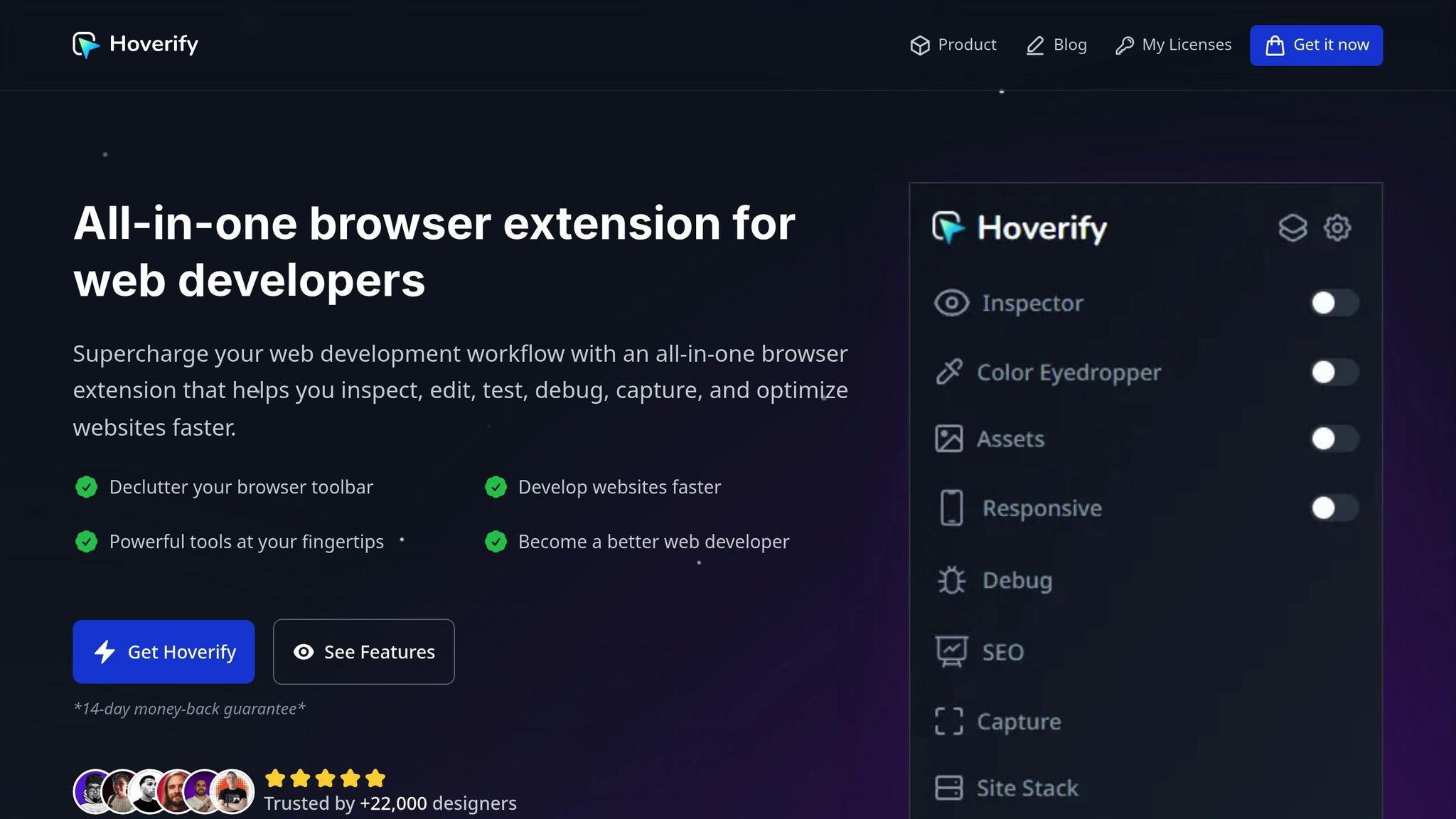
Hoverify stands out from typical screenshot tools by offering a suite of development utilities in a single browser extension. Created by Himanshu Mishra, this tool aims to streamline workflows by consolidating essential features for web developers. With over 22,000 users and a 4.1/5 rating on the Chrome Web Store, it’s become a reliable choice for developers tackling daily tasks.
Hoverify isn’t just about screenshots. It’s a multipurpose tool that helps you inspect, debug, test, and fine-tune websites. Web developer Madhu Menon highlights its versatility:
“Allows you to inspect elements on any site, copy styles, show grids, check on different viewports, grab asset lists, hide elements, and a whole lot more.”
Despite its broad functionality, Hoverify remains lightweight, ensuring smooth performance without bogging down your browser. Let’s take a closer look at its screenshot features and additional tools.
Screenshot Features in Hoverify
Hoverify offers four screenshot modes: Visible Part, Full Page, Select Area, and Select Element. The built-in Screenshot Editor allows you to enhance captures with custom backgrounds, effects, and annotations like arrows, highlights, and text. The Select Element mode, in particular, provides precision by targeting specific components with just one click, eliminating the need for manual adjustments.
You can save screenshots in multiple formats, including JPEG, PNG, WEBP, or PDF, making it adaptable for various needs.
Additional Development Tools in Hoverify
Hoverify’s functionality goes far beyond screenshots. It includes several developer-focused tools designed to simplify workflows:
- Inspector: Hover over elements to view and edit HTML/CSS in real time. Adjust styles, animations, and media queries on the fly, and export components directly to CodePen for further experimentation.
- Responsive Viewer: Test your site on multiple device profiles simultaneously. Mirrored interactions - like synchronized scrolling and clicking - ensure consistency across viewports.
- Asset Extraction: Gather all assets, including images, SVGs, videos, PDFs, and Lottie animations, with a single click. This tool even captures hidden elements and iframes that standard “Save Image” options often miss.
Additional features include Site Stack, which reveals a website’s technology stack, hosting provider, and CMS plugins, and Debug Tools for clearing cache and cookies. As Mike Oliver shares:
“My go-to browser extension when building websites. The support is amazing and very responsive.”
Feature Comparison: GoFullPage vs Hoverify
Screenshot Capture Modes
When it comes to capturing screenshots, GoFullPage and Hoverify take slightly different approaches. GoFullPage is all about simplicity, offering one-click full-page captures - perfect for quick and efficient documentation. Hoverify, on the other hand, provides more versatility with four distinct capture modes: Visible Part, Full Page, Select Area, and Select Element. The Select Element mode is especially handy for developers, allowing you to capture individual UI components without the hassle of manual cropping.
| Feature | GoFullPage | Hoverify |
|---|---|---|
| Full Page Capture | Yes (Optimized for iframes) | Yes |
| Visible Area | Yes | Yes |
| Selected Area | Yes (Premium) | Yes |
| Element-specific | No | Yes |
| Supported Formats | PNG, JPEG, PDF | PNG, JPEG, PDF, WebP |
While both tools excel in screenshot functionality, their editing and customization features set them apart.
Editing and Customization
GoFullPage’s premium version includes essential tools for annotations, such as shapes, arrows, text, and even emojis. It also offers extras like blur effects, URL/date stamps, and smart PDF page splitting, making it a solid choice for professional documentation needs. Hoverify, however, steps up the creativity game with its Screenshot Editor. It allows users to add custom backgrounds, apply effects, and use styling tools, offering more design flexibility alongside standard annotations.
| Feature | GoFullPage (Premium) | Hoverify |
|---|---|---|
| Basic Annotations | Shapes, Text, Emojis, Arrows | Arrows, Highlights, Text labels |
| Advanced Effects | Blur, URL/Date stamps, Browser wrap | Backgrounds, Styling tools, Effects |
| PDF Customization | Smart page splitting | Standard export |
These differences highlight how each tool caters to distinct user needs, which becomes even clearer when looking at how they fit into daily workflows.
Workflow Integration
Both tools integrate into developer workflows, but they do so in very different ways. GoFullPage focuses on being lightweight and straightforward. It’s designed for those who need a reliable screenshot tool without additional clutter. As Neal B., a verified reviewer, puts it:
“GoFullPage is the simplest to use, integrates easily into our workflow, and delivers exceptional results every time”.
One standout feature is that GoFullPage requires no extra permissions, which is a big plus for security-focused users.
Hoverify, however, takes a more comprehensive approach. It combines screenshot capabilities with tools for inspecting, debugging, and testing. For example, you can capture an element, inspect its CSS, tweak styles in real-time, and even export your work to CodePen - all from within the same tool. While this all-in-one approach reduces context switching, it does come with a steeper learning curve compared to GoFullPage’s simplicity.
| Aspect | GoFullPage | Hoverify |
|---|---|---|
| Primary Focus | Visual documentation | Web development suite |
| Tool Design | Single-purpose, lightweight | Multi-tool integration |
| Dev Integration | Basic (Figma support) | Comprehensive (includes Inspector and CSS editing) |
| Ease of Use | Extremely high (One-click) | Moderate (Learning curve) |
| Permissions | None required | Standard extension access |
Performance and Usability
Installation and User Interface
Installing both tools is a breeze, but their interfaces cater to different user needs. GoFullPage offers a simple, one-click installation process. Just grab it from the Chrome Web Store or Microsoft Edge Add-ons, and you’ll see its icon pop up in your browser toolbar - no extra permissions required. This simplicity also enhances privacy, as it minimizes potential security concerns.
On the other hand, Hoverify takes a more advanced approach. While its installation is equally straightforward for Chromium-based browsers like Chrome and Brave, it brings a feature-packed dashboard to the table. Beyond screenshots, it includes tools like the Inspector, Responsive Viewer, and Assets extractor. GoFullPage’s minimalist design shines with its ease of use, while Hoverify’s broader functionality caters to developers looking for an all-in-one solution that integrates seamlessly into their workflow.
Now, let’s see how these design choices affect system performance.
Resource Usage and Browser Performance
In terms of resource demands, GoFullPage keeps things light and efficient. Its minimal design, combined with the absence of extra permissions, ensures a small impact on browser performance and security. However, it can hit a snag when dealing with very large or heavily animated pages, sometimes leading to slower performance or incomplete captures.
Hoverify, with its all-in-one design, naturally uses more resources, especially if you’re juggling multiple tabs. But this trade-off comes with benefits: you get a suite of tools like CSS editing, responsive testing, and more, all within one extension. For developers who need these features regularly, the slight performance dip is a fair trade to avoid managing multiple separate extensions.
| Feature | GoFullPage | Hoverify |
|---|---|---|
| Installation Ease | High (No extra permissions) | Moderate (Paid tool) |
| UI Complexity | Low (One-click simplicity) | Moderate (Feature-rich dashboard) |
| Resource Usage | Lightweight | Higher with many tabs |
| Browser Performance | Struggles with large/animated pages | May slow browser when heavily used |
| Offline Mode | No | Limited |
If speed and privacy are your top priorities, GoFullPage offers a streamlined experience. But if you’re a developer seeking a comprehensive toolkit, Hoverify’s integrated features might justify the slightly higher resource usage.
Pricing and Value
When deciding on the right tool, pricing often plays as big a role as performance and usability.
GoFullPage Pricing
GoFullPage operates on a freemium model, offering a simple and accessible solution for full-page screenshots. The free tier includes unlimited captures with downloads available in PNG, JPG, or PDF formats. For those looking for advanced features like cropping, annotations, blur effects, timestamps, and smart PDF splitting, the Premium plan is available at just $12 per year (billed as $1 per month) and includes a 7-day free trial. This pricing structure makes it an appealing choice for users who want an affordable, no-frills tool.
Hoverify Pricing and Plans
Hoverify, on the other hand, is a premium-only option. Users can choose between a $30 annual subscription or a lifetime license for $89, with each license supporting three activations. Both plans come with a 14-day money-back guarantee. Hoverify markets itself as more than just a screenshot tool - it’s a full developer toolkit, combining multiple features into one lightweight browser extension. According to the company, this all-in-one approach can save developers up to 5–6 hours per week. With over 22,000 developers on board, Hoverify has established itself as a trusted resource. Rahul Singh, a web developer, shared his thoughts:
Awesome Tool for Developers and Web Designers, Everything in one sorted place with this lightweight extension.
Hoverify also offers team discounts, with savings increasing as the number of licenses grows.
If you’re looking for an affordable, specialized tool for screenshot capture, GoFullPage is a great fit. For those in need of a robust developer toolkit, Hoverify’s premium features and time-saving capabilities make it a worthwhile investment. Each tool’s pricing reflects its core purpose - GoFullPage focuses on simplicity, while Hoverify emphasizes feature-packed efficiency.
Which Tool Should You Choose?
Based on the features we’ve covered, the right tool depends on your specific needs and workflow. If you want a budget-friendly, dependable option for full-page screenshots, GoFullPage is a great pick. With over 9 million users and an impressive 4.9/5 rating from more than 83,500 reviews on the Chrome Web Store, it’s a trusted choice for capturing full-page views effortlessly. Its seamless integration into documentation workflows makes it a reliable companion for everyday use.
On the other hand, Hoverify caters to developers and designers who need more than just screenshots. This lightweight extension combines tools for element inspection, responsive testing, asset extraction, and screenshot editing. It supports modern image formats like WebP alongside PNG, JPEG, and PDF, and offers options to enhance screenshots with backgrounds, effects, and annotations - ideal for creating polished, presentation-ready visuals.
Final Recommendations
Your decision boils down to whether you value simplicity or a multi-functional toolkit.
- Go with GoFullPage if your main goal is capturing clean, accurate full-page screenshots. It’s especially effective for tricky layouts, such as Gmail, where it scrolls inner elements correctly. The free version covers basic screenshot needs, while the premium plan offers extra editing tools - like cropping, shapes, and blur effects - for just $12 per year.
- Opt for Hoverify if you’re a web developer or designer looking for an all-in-one toolkit. Priced at $30 per year or $89 for lifetime access, Hoverify combines advanced screenshot features with tools for inspecting elements, testing responsiveness, and extracting assets, making it a valuable addition to your workflow.
Both tools excel in their respective areas: GoFullPage keeps things simple and reliable for screenshots, while Hoverify provides a robust suite of tools tailored for developers and designers. Choose the one that aligns with your priorities.
FAQs
How do GoFullPage and Hoverify differ as screenshot tools?
GoFullPage is a straightforward browser extension that simplifies the process of taking full-page screenshots. With just one click, it automatically scrolls through the page, stitches everything together, and delivers a complete image. You can export your screenshots in formats like PNG, JPG, or PDF. For those who opt for the premium version, there’s an added perk: basic annotation tools for quick and simple edits.
Hoverify, however, goes beyond screenshots. It’s a versatile tool designed with developers in mind. It offers features like real-time HTML and CSS editing, element inspection, media query adjustments, and live debugging - all directly within your browser. This makes it a powerful asset for web development and design work.
The main distinction between the two? GoFullPage shines when it comes to creating precise, full-page screenshots, while Hoverify caters to developers with its robust suite of design and debugging tools.
How does Hoverify improve the web development process?
Hoverify streamlines web development by bundling several must-have tools into a single browser extension. With one click, you can take full-page screenshots and inspect individual DOM elements right in your browser. It provides instant access to an element’s HTML, CSS, and computed styles, eliminating the need to jump between separate developer tools. This makes pinpointing layout problems and visual bugs much quicker.
It doesn’t stop there - Hoverify also offers responsive testing, letting you see how your designs adapt across mobile, tablet, and desktop breakpoints in one unified view. Plus, its annotation tools allow you to add comments, highlights, and measurements directly on screenshots. These annotated images become collaborative assets, making it easier for your team to tackle issues together. With integrations into tools like Slack and Jira, sharing and documenting visual problems is smooth and keeps your workflow running efficiently.